Your Scarlet plan: start, change or cancel your subscription
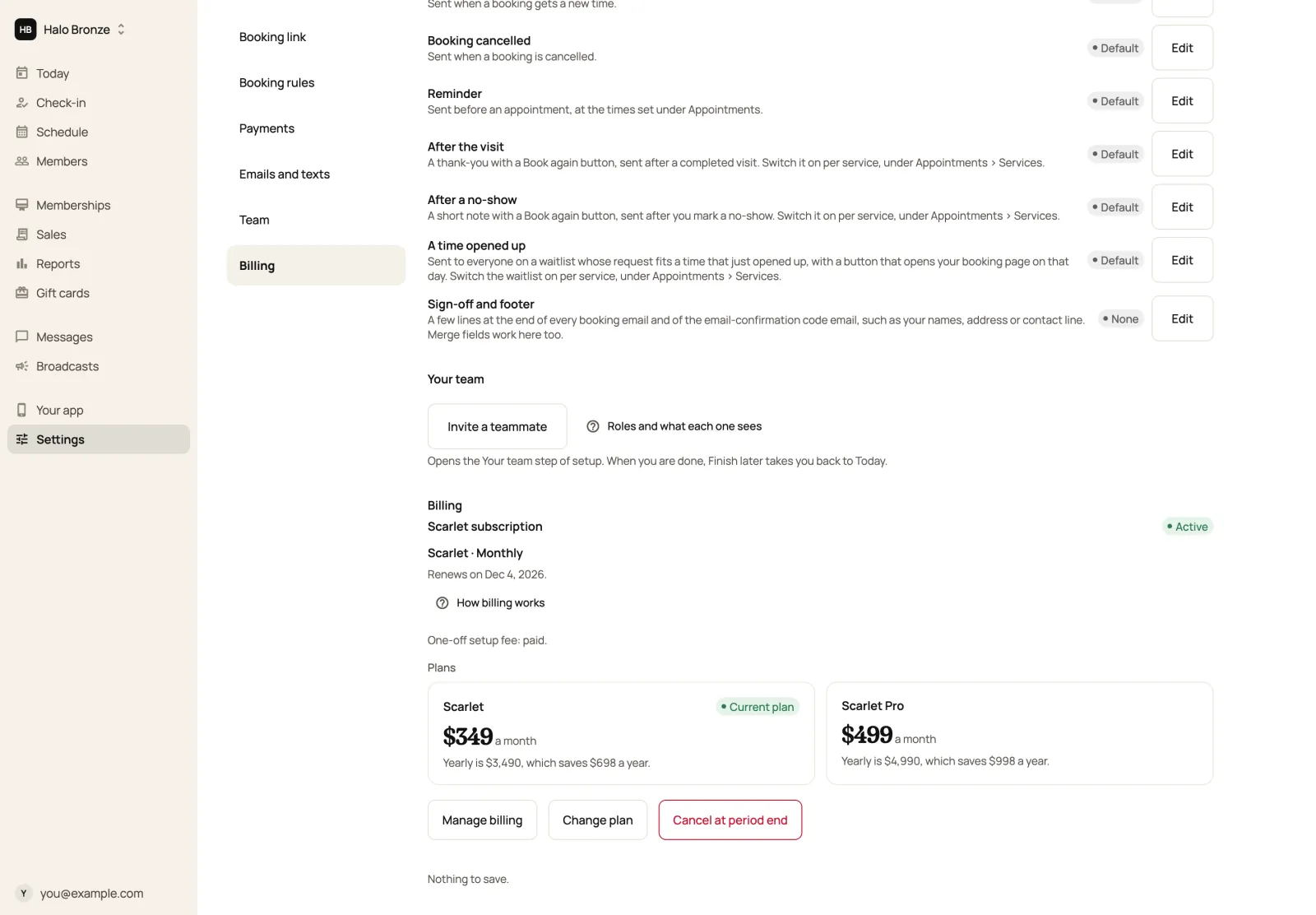
Your Scarlet subscription lives in Settings, under Billing. Only the studio owner can start, change or cancel it. Managers can see its status and the prices.
On this page 5 sections
The two plans#
- Scarlet: your branded app, booking, memberships, check-in and payments, with 5 staff logins.
- Scarlet Pro: everything in Scarlet, with 20 staff logins, push broadcasts to your member groups and text reminders to clients (coming soon).
Both can be billed monthly or yearly. Billing shows the current prices, and how much yearly billing saves, before you pay anything. Scarlet also keeps 1% of each card payment your members make in your app: see payouts.
Start your subscription#
Open Billing
In the admin, open Settings and choose Billing in the section links, which takes you to the Billing card near the end. It says No subscription until you start one.
Pick a plan and how often to pay
Choose Scarlet or Scarlet Pro, then Monthly or Yearly. Under Today you pay you see exactly what's charged now, including any one-time setup fee, and what you'll pay after that. Yearly billing can waive the setup fee; the screen says when it does.
Pay on Stripe's page
Choose Start subscription. You pay on Stripe's secure checkout page and come back to the admin, where Billing shows Confirming payment for a moment, then Active.
Change plan, card or billing period#
- Change plan switches between Scarlet and Scarlet Pro, or between monthly and yearly. Before you confirm, it shows what's due now (or the credit you get back) and what your next invoice will be. It isn't offered while a payment has failed or the subscription is set to end: fix the card or resume first.
- Manage billing opens Stripe's billing page, where you update your card.
Cancel or resume#
Choose Cancel at period end. Your subscription stays active until the end of the period you've paid for, then doesn't renew. Changed your mind? Choose Resume subscription any time before that date and it renews as before.
If a payment fails#
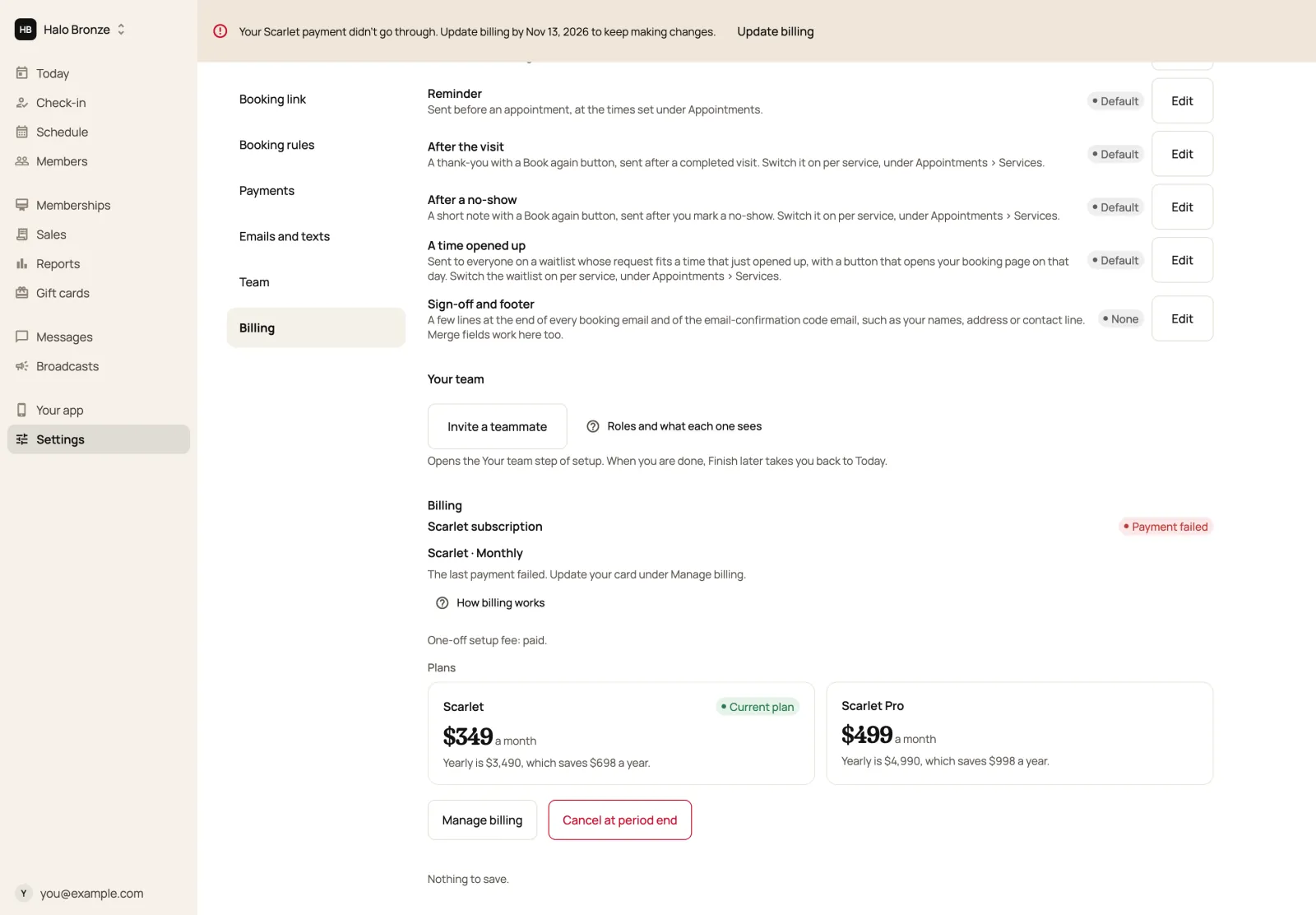
Billing shows Payment failed, and a banner across the admin asks you to update billing, by a date when there is one. Choose Update billing, then Manage billing, and fix your card on Stripe's page. Other staff see a line asking them to tell the owner.
If the payment isn't fixed in time, or after a subscription ends, changes in the admin are paused. You can still see everything, but can't change your schedule or settings, add members, sell new memberships, invite staff or send broadcasts.
Still stuck?
Email hello@meetscarlet.com and tell us which guide you were on. A person reads every message.