Reply to members and send broadcasts
Messages is one inbox for the conversations members start in your app. Broadcasts sends a push notification to many members at once, with quiet hours and a daily limit so nobody gets too many.
On this page 4 sections
Answer messages#
Owners, managers and front desk staff see Messages. Conversations are listed newest first, with Open and Closed filters. On a wide screen the list and the conversation sit side by side; on a phone the conversation opens over the list. On a phone, a red dot on More means an open conversation has a message nobody has read yet, and Messages says New inside it.
Open a conversation
Choose a member in the list. Opening it marks it read. To write to someone first, open the member and choose Message.
Reply
Type in Write a message and choose Send, or press Ctrl or Cmd and Enter. Your reply goes to the member's app.
Attach a file if you need to
Use the paperclip to add one photo or PDF, up to 8 MB.
Close it when it's done
Closing keeps the inbox tidy. Sending another message reopens it.
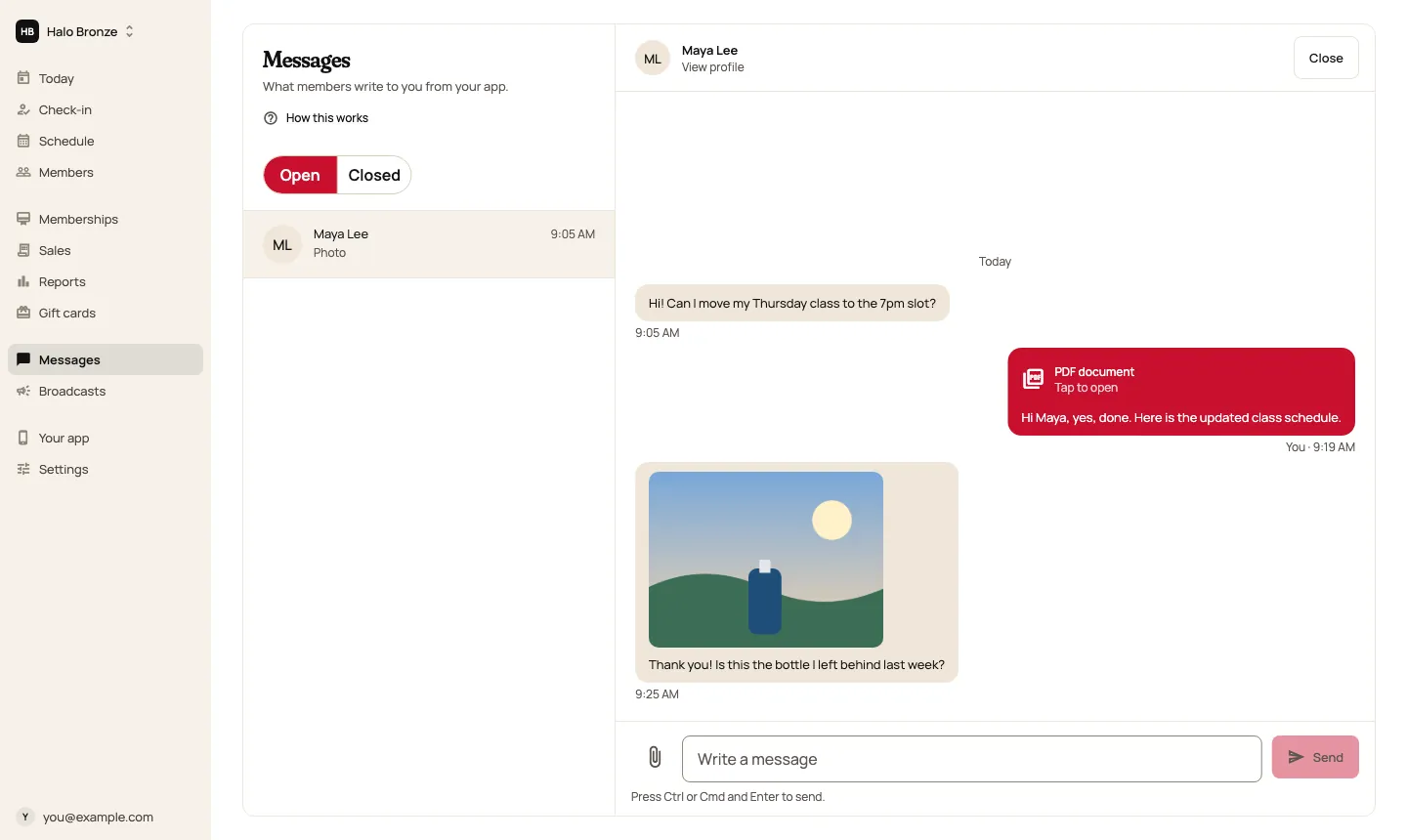
You can also start a conversation from a member's profile with Message. A blocked member won't see new messages.
Send a broadcast#
Broadcasts are for owners and managers, and they're part of Scarlet Pro. On the Scarlet plan, the screen explains them. The owner gets See plans in Settings; a manager is asked to check with the owner and gets Compare the plans, which opens The two plans.
Write it
Give it a Title (up to 65 characters) and a Message (up to 240). The counters under each field show how many characters you've used, such as 12 of 65 characters.
Choose who gets it
All members, or Members tagged one of your tags. The choice appears once some members have tags. Only members who turned on broadcast notifications in your app can get it.
Preview the audience
Check who gets it sends nothing. It tells you how many members and phones it will reach, and who will miss it and why: no phone signed in to the app, or quiet hours where they are. Under What members see it shows the notification as it will look.
Try it on your phone
Test on my phone sends it to your phone only, so you can check how it reads. It goes to the member account in your studio's app that uses the same email you sign in to the admin with, so sign in to the app with that email first. If more than one member in your studio has that email, nothing is sent. It follows the same rules as a real broadcast: Offers and news must be on in the app under Me, then Notifications, and nothing arrives in quiet hours. A test doesn't use one of today's broadcasts, and you can send 5 an hour. If nothing arrives, the screen says why: couldn't find your phone (sign in to the app with your admin email), notifications aren't allowed on the phone, Offers and news is off, or it's quiet hours. You can test before or after Check who gets it.
Send
Choose Send to … and a box asks you to confirm the number of members. Read it once more, then choose Send now, or Cancel to keep editing. Once it's sent, it can't be taken back, and it uses one of today's broadcasts.

What you've sent#
Recently sent lists your last ten broadcasts: when each went out, whether it went to all members or to one tag, and how many members it reached. Scarlet keeps only those counts, not the words, so keep your own copy if you want to send the same message again.
Quiet hours and the daily limit#
- Quiet hours start at 9 pm and end at 8 am unless the owner changes them. They follow the local time on each member's phone, or your studio's time zone when a phone doesn't say.
- The daily limit is 2 broadcasts a day unless the owner changes it, up to 10. The count starts again at midnight UTC, and the admin shows that time on your studio's clock, such as 7:00 PM in New York in winter.
- One broadcast reaches up to 5,000 members. If more match, choose a tag to narrow it.
The owner changes quiet hours and the daily limit under Broadcast settings on the same screen: beside the message on a wide screen, below it on a smaller one. Managers can see them but not change them.
Still stuck?
Email hello@meetscarlet.com and tell us which guide you were on. A person reads every message.