Set up classes, spot maps and waitlists
You describe each class once: its length, capacity, instructor and weekly times. Scarlet then puts the classes on the schedule for the next eight weeks and adds a new week every day, so the schedule never runs out.
On this page 8 sections
Add a class#
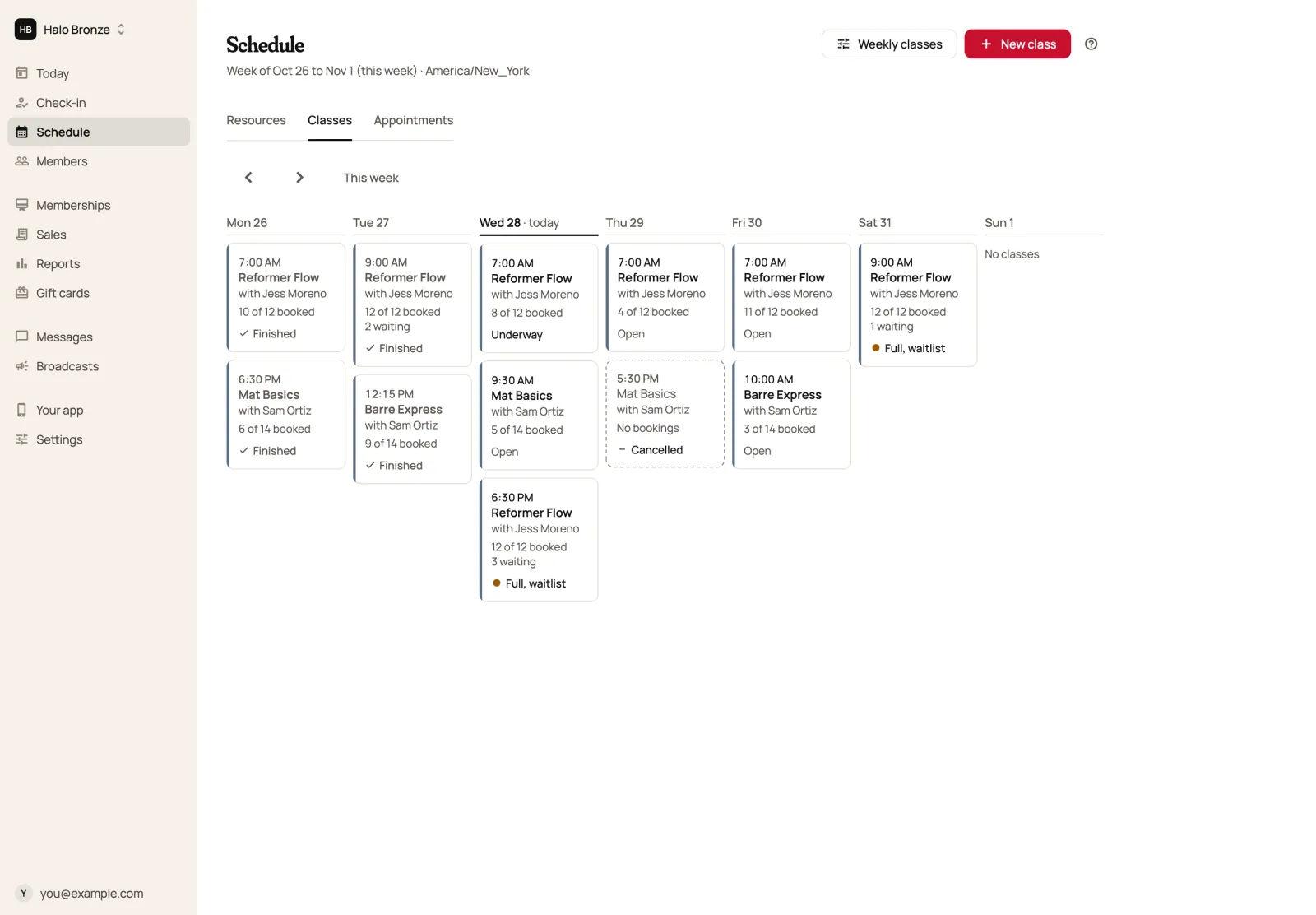
Choose New class
In Schedule, choose Classes, then New class. Everything you've already set up is under Weekly classes. To see how a spot map works, start from the Reformer class (12 spots) preset: 55 minutes, 12 reformers in two rows, a waitlist of 8 and free cancellation until 12 hours before.
Describe the class
Give it a Name, its Length in minutes and its Capacity, and pick the Instructor. If it uses a room, choose the Room: a room is locked for the class, so nothing else books it then.
Set when it runs
Under When it runs, add each day and start time (use Add time for more). Pick First class on or after from the calendar, and a Last day only if it ends; empty means it keeps running, and the × beside it empties it again. Times are in your studio's time zone.
Set booking and money
See Booking rules and plans below, then save.
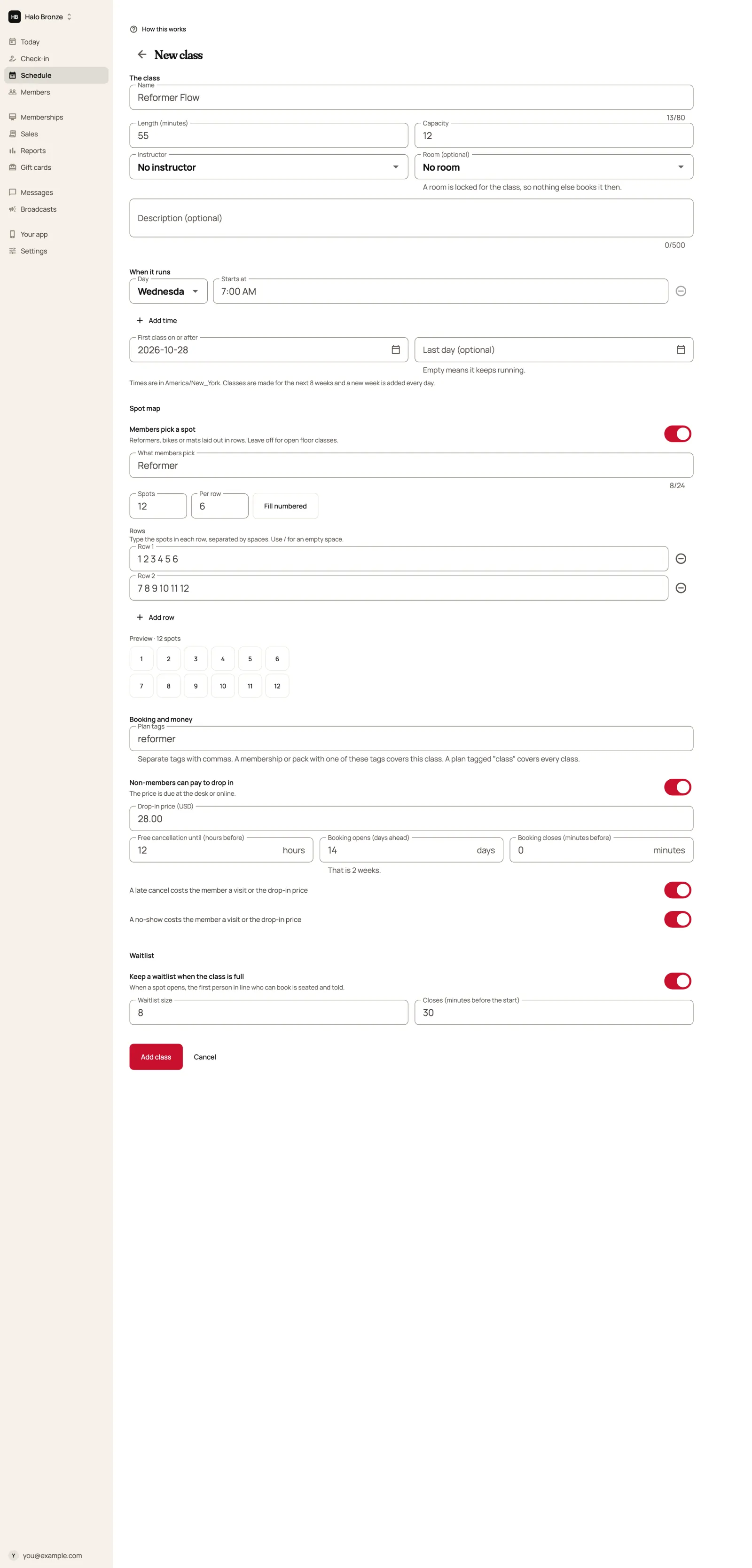
If a time can't be scheduled, for example because the room or the instructor is already booked, the form says which times and why. Move the other booking or change the room or time, and save again. Scarlet also retries these every day.
Let members pick a spot#
For reformers, bikes or mats laid out in rows, turn on Members pick a spot. Leave it off for open-floor classes.
- Name what members pick, like Reformer or Bike.
- Use Fill numbered with the number of Spots and how many Per row, or type each row yourself: spots separated by spaces, with / for an empty space.
- The preview shows the map as members will see it.
Booking rules and plans#
Under Booking and money:
- Plan tags: tags such as reformer or pilates, separated by commas. A membership or pack with one of these tags covers the class, and every class also counts as "class".
- Non-members can pay to drop in: turn on and set a drop-in price.
- Free cancellation until (hours before), Booking opens (days ahead) and Booking closes (minutes before).
- Whether a late cancel, and a no-show, costs the member a visit or the drop-in price.
Waitlists#
Turn on Keep a waitlist when the class is full, and set the Waitlist size and when it Closes (minutes before the start). When a spot opens, the first person in line who can book is seated and told.
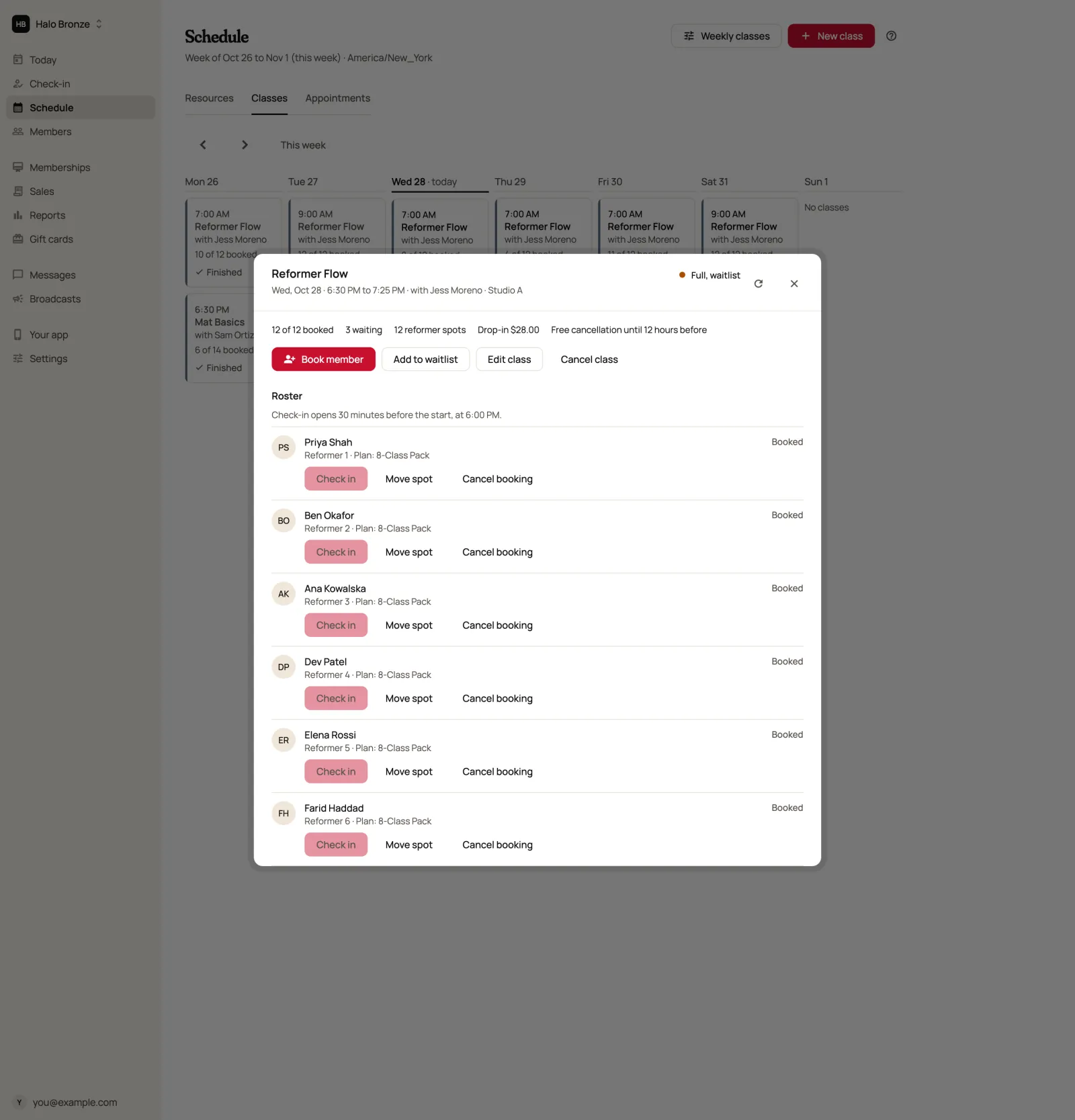
From a class, the front desk can book a member with Seat ahead of the waitlist, or choose Seat now next to someone in the queue, picking which of their plans pays.
Appointments have a waitlist too, set per service. See Appointment waitlists.
On the day#
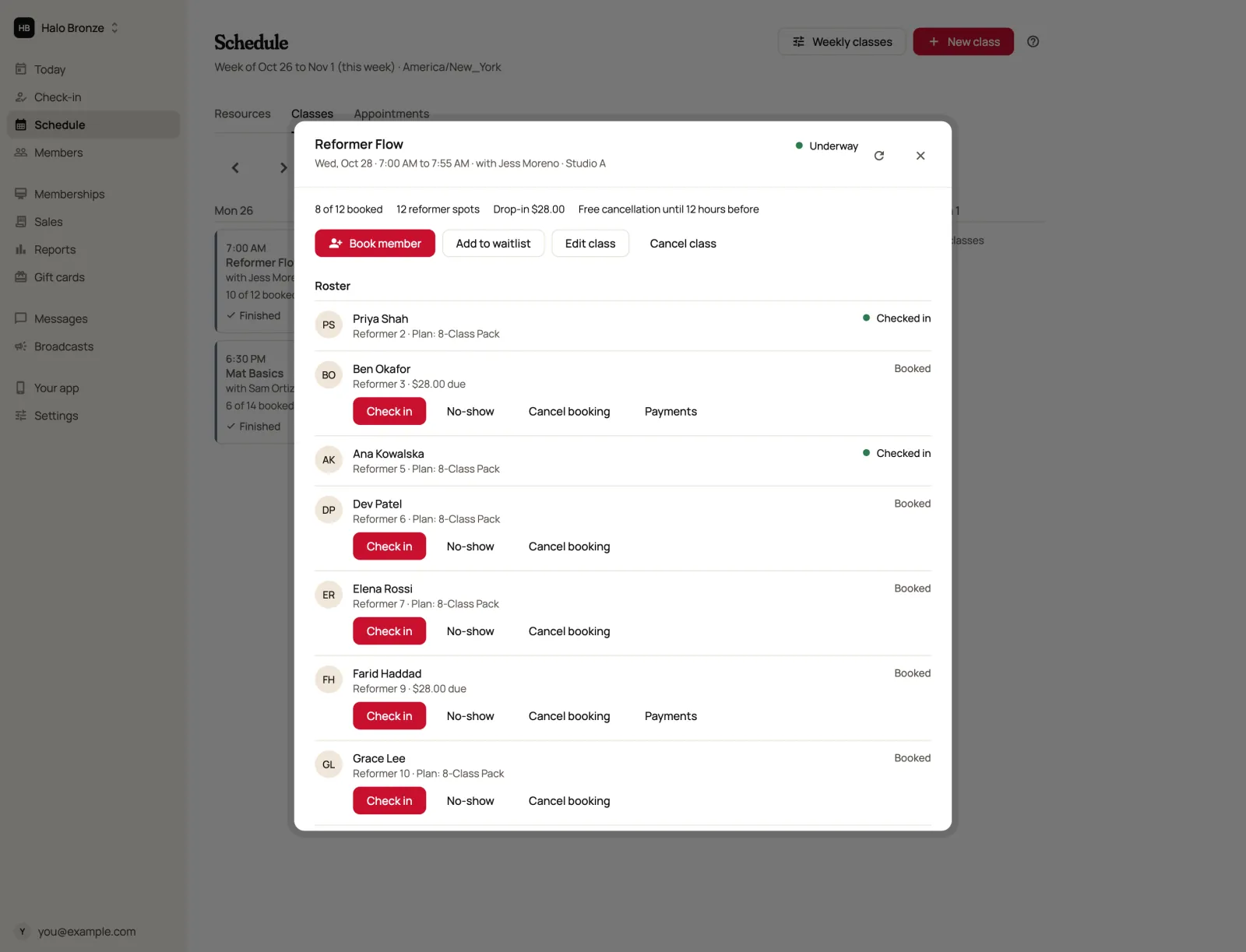
Open a class on the schedule to see its roster.
- Check in each member as they arrive. Check-in opens 30 minutes before the start and stays open until the class ends.
- Mark someone who didn't come as a no-show. The button appears once the No-show grace in Settings has passed after the start, 15 minutes unless you changed it. If the class charges for no-shows, a visit is used or the drop-in price is owed.
- Book member from the desk, or Add to waitlist. Search by name, email or phone. The desk can book, or seat someone from the waitlist, until 30 minutes after the start.
- Move a member to another spot (only before the class starts), or cancel their booking. Inside the cancellation window it counts as a late cancel, which you can waive.
Once a class has ended, nothing on it can be changed: no bookings, moves or cancellations.
Change or cancel one class#
Edit class changes that one class only, not the rest of the series: its name, instructor, capacity or description. If you lower the capacity below the number booked, choose Keep everyone booked or cancel the last bookings; bumped members are told the class is cancelled for them and aren't charged.
Owners and managers can edit a class. To change every week, edit it under Weekly classes instead.
Cancel a class or a whole day#
Open the class on the schedule and choose Cancel class. Owners, managers and the front desk can, until the class has ended. Before you confirm, Scarlet shows exactly what will happen:
- Every booking is cancelled with no penalty to the member, and nobody can book the class again.
- Visits taken from a plan go back to the member, including any lost to a late cancel or no-show for this class. A paid drop-in is refunded automatically, usually within about 15 minutes, to the card it was paid with, or back to the member's credit if they paid with credit. Their bank may take a few days to show it.
- Booked and waitlisted members get a notification that the class was cancelled (unless they've turned reminders off), and the waitlist is closed.
- You can add a reason (up to 300 characters). It's saved with the class but members aren't sent it, so tell them yourself if it matters, for example with a broadcast.
To close for a whole day, cancel each class on that day the same way. If you also take appointments, add the date to Closed dates in Settings so nobody can book or move an appointment onto it, then cancel any appointments already booked that day from the Day view, because closed dates leave existing bookings in place and don't affect classes. See closing on public holidays.
Who can do what#
| Task | Who |
|---|---|
| Add and edit weekly classes, edit one class | Owner, manager |
| Book, waitlist, cancel bookings, cancel a class | Owner, manager, front desk |
| Check in and mark no-shows | Owner, manager, front desk, instructor |
Still stuck?
Email hello@meetscarlet.com and tell us which guide you were on. A person reads every message.