Publish your app to the App Store and Google Play
Apple only lets an app go out under your own name, so your app is published from your own Apple Developer account and your own Google Play account. You own them and keep them; we build the app and handle the review inside them.
On this page 6 sections
What you'll need#
- Your business's legal name and address, exactly as they appear on its registration.
- A website for your business, and a work email on your own domain (like you@yourstudio.com, not a Gmail address).
- To enroll as an owner or officer of the business.
- $99 a year for the Apple Developer Program, and $25 once for Google Play. You pay Apple and Google directly.
The steps#
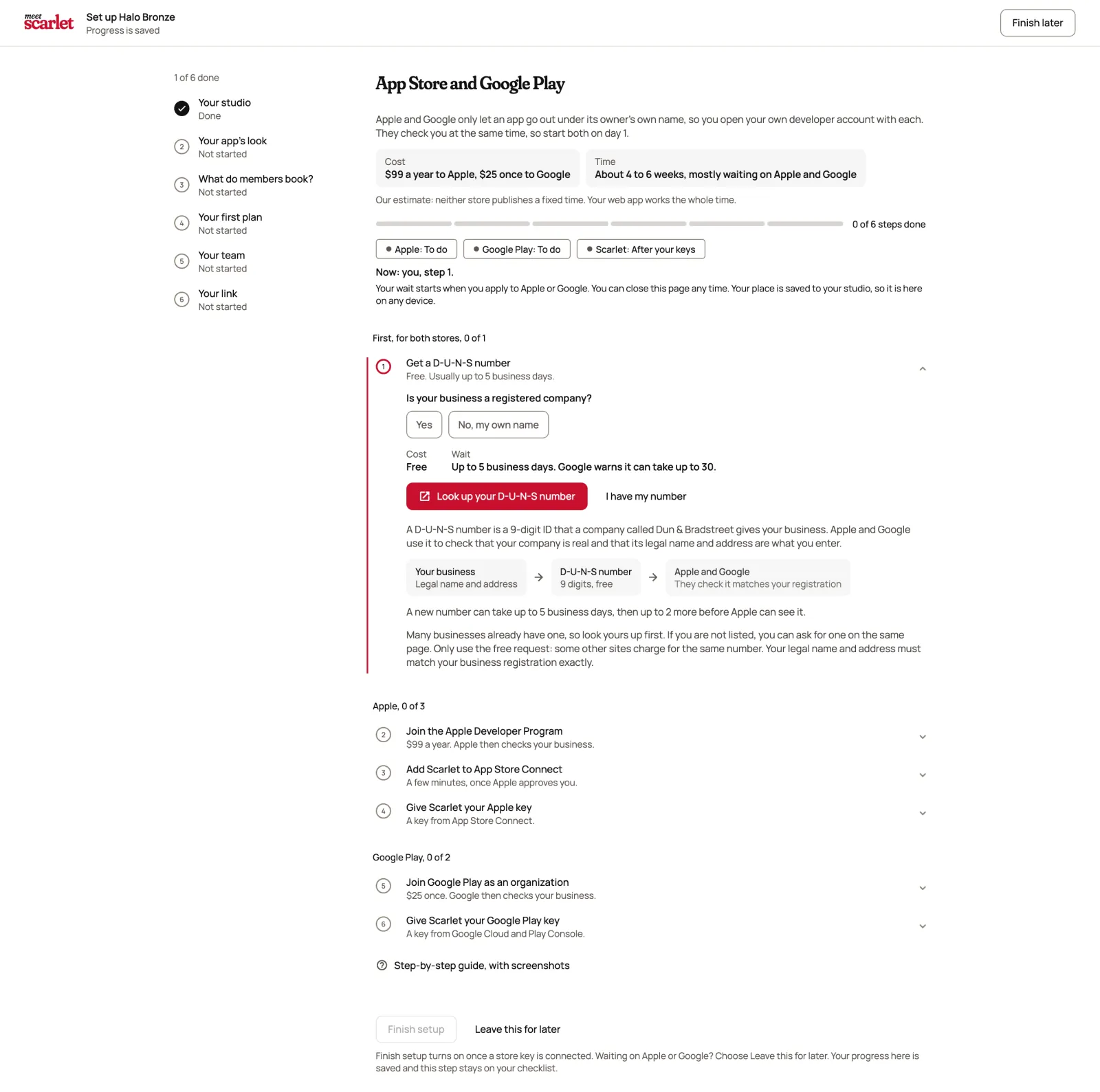
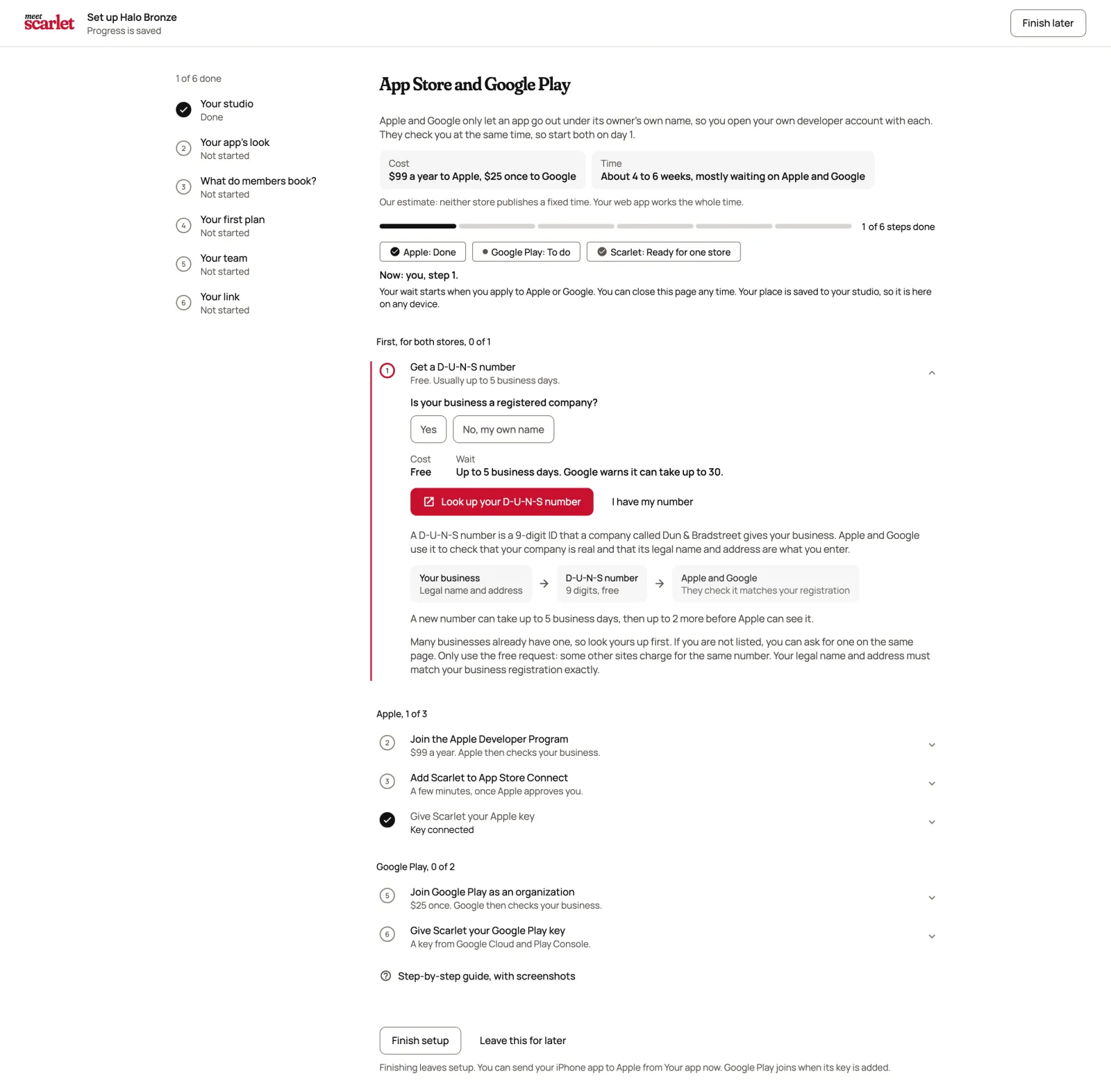
Do these in order. Steps 1 and 2 are the slow ones; the rest take minutes once Apple and Google say yes. In the admin, the App Store and Google Play setup step lists the same steps as a checklist with a link to each official page. Choose Mark as done on each one as you finish it, and the line above the list counts them, like 1 of 5 store steps done. The last one marks itself done when both keys are connected. Your progress is saved with your studio, so they're there on any computer or phone, and owners and managers see the same list.
Get a D-U-N-S number (free)
A D-U-N-S number is a 9-digit ID for your business from Dun & Bradstreet. Look yours up through Apple's D-U-N-S lookup. If you don't have one, ask for it there. It takes up to 5 business days, sometimes longer.
The legal name and address must match your business registration exactly. A different spelling is the usual reason Apple pauses an enrollment.
Join the Apple Developer Program as a company ($99 a year)
Start at Apple's enrollment page. Choose Company / Organization, not Individual, and enroll with your D-U-N-S number. You need the website and the work email on your own domain.
Apple calls to check who you are. Answer that call: a missed call is the most common cause of delay.
Add Scarlet to App Store Connect
In App Store Connect, open Users and Access and invite apps@meetscarlet.com as Admin. Then, under Integrations, request access to the App Store Connect API. Only you, the account holder, can do that.
Join Google Play as an organization ($25 once)
Create your Play Console account, choose Organization, and use the same D-U-N-S number. In Users and permissions, invite apps@meetscarlet.com with permission to create apps. Later, when you add your Google Play key, you also invite your own service account there, for releases.
Send us your keys
Once Apple and Google have approved your accounts, make one key in each, then add them in the admin: in the App Store and Google Play step of setup, or later under Your app › Publish with Connect App Store or Connect Google Play (either one opens that step). Only the studio's owner can add them, with two-step sign-in on. If two-step sign-in is off, a note in place of the key cards asks you to turn it on; a manager sees a note asking the owner to open this step. The next two sections show how. If a key later shows Needs attention, or Not connected because the store stopped accepting it, see If something looks wrong. We use the keys to build, upload and follow your app through review.
Add your App Store key#
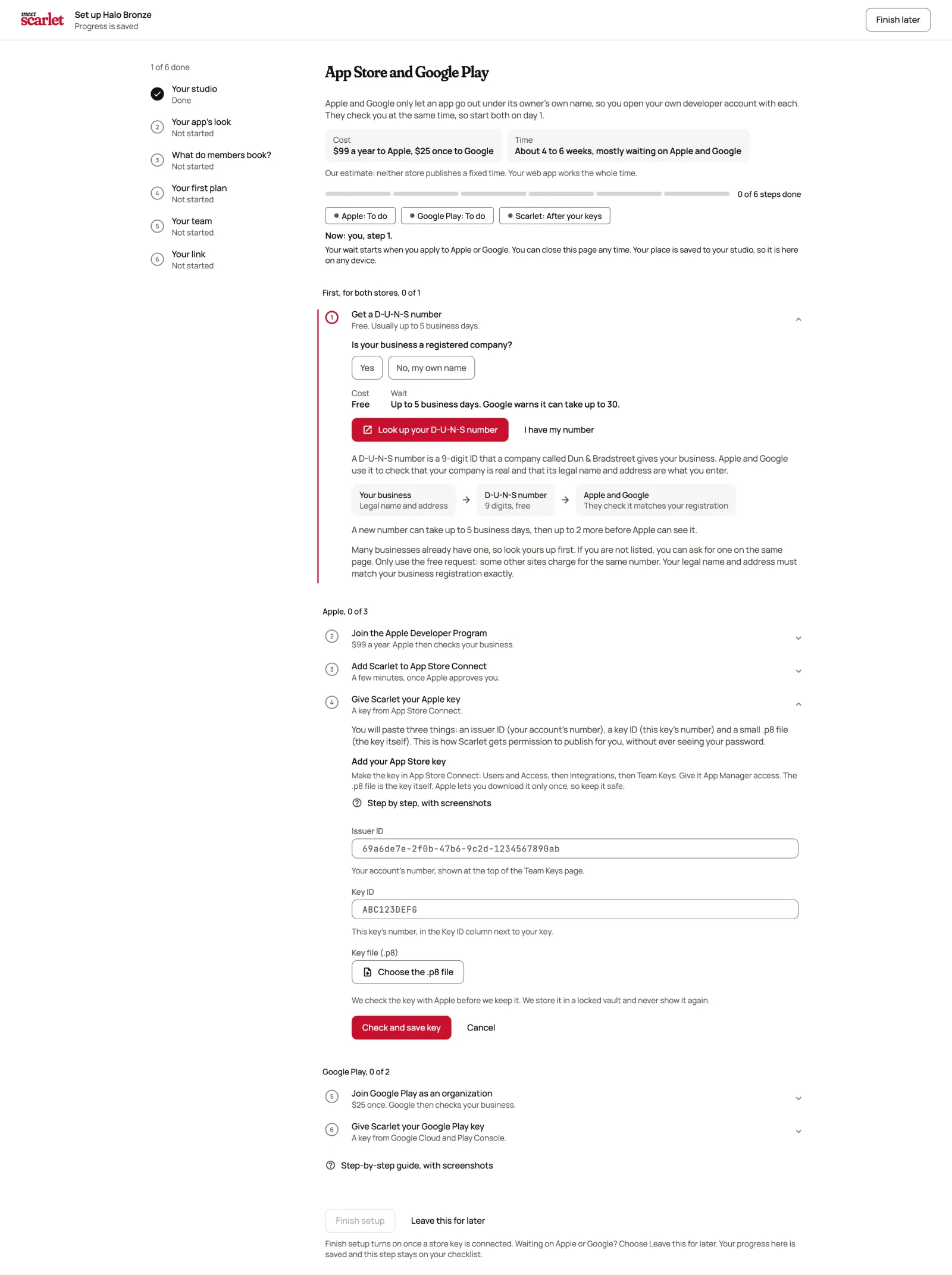
Make the key
In App Store Connect, go to Users and Access, then Integrations, then Team Keys. Create a key with App Manager access.
Download it once
Download the .p8 file. Apple lets you download it only once, so keep it somewhere safe.
Add it in Scarlet
On the App Store key card, choose Add key. Enter the Issuer ID (shown at the top of the Team Keys page) and the Key ID (in the Key ID column next to your key), choose the .p8 file, then Check and save key.
Add your Google Play key#
Make a service account
In Google Cloud, create a service account and download a JSON key for it.
Give it access in Play Console
In Play Console, under Users and permissions, invite the service account's email address with permission to release your app.
Add it in Scarlet
On the Google Play key card, choose Add key, choose the JSON file, and check the App package name, like com.yourstudio.app. It's usually filled in for you, because we create the app in Play Console; leave it as it is, and only type it if it's empty and we've told you the name. Then choose Check and save key.
When a key is saved, its card says Connected. You can use Check again at any time to confirm the store still accepts it, or Replace key and Remove key to change it.
How we keep your keys safe#
We check each key with Apple or Google before we keep it, then store it in a locked vault. The admin never shows a key again; it shows only details like the key ID, its fingerprint and when it was last checked.
Only the studio's owner can add store keys, and only with two-step sign-in turned on, because the keys can publish your app. Managers can read this step and tick the checklist; in place of the key cards they see a note asking the owner to add the keys.
After your keys are in#
We create your app's identifiers, build your branded app, test it on a phone and upload it, then submit it once the listing and screenshots are approved. You can follow each step in Your app. See Follow your app through review.
Still stuck?
Email hello@meetscarlet.com and tell us which guide you were on. A person reads every message.