HelpMemberships, packs and gift cards
Sell memberships, packs and passes in your app
A plan is what a member buys: an unlimited monthly membership, a 10-visit pack, a class-credit plan, a day pass. You create plans in Memberships, and members buy them in the Shop tab of your app.
On this page 6 sections
Before you start#
To take card payments, connect Stripe first. Owners and managers create and change plans. Front desk staff can see the list but not change it.
Create a plan#
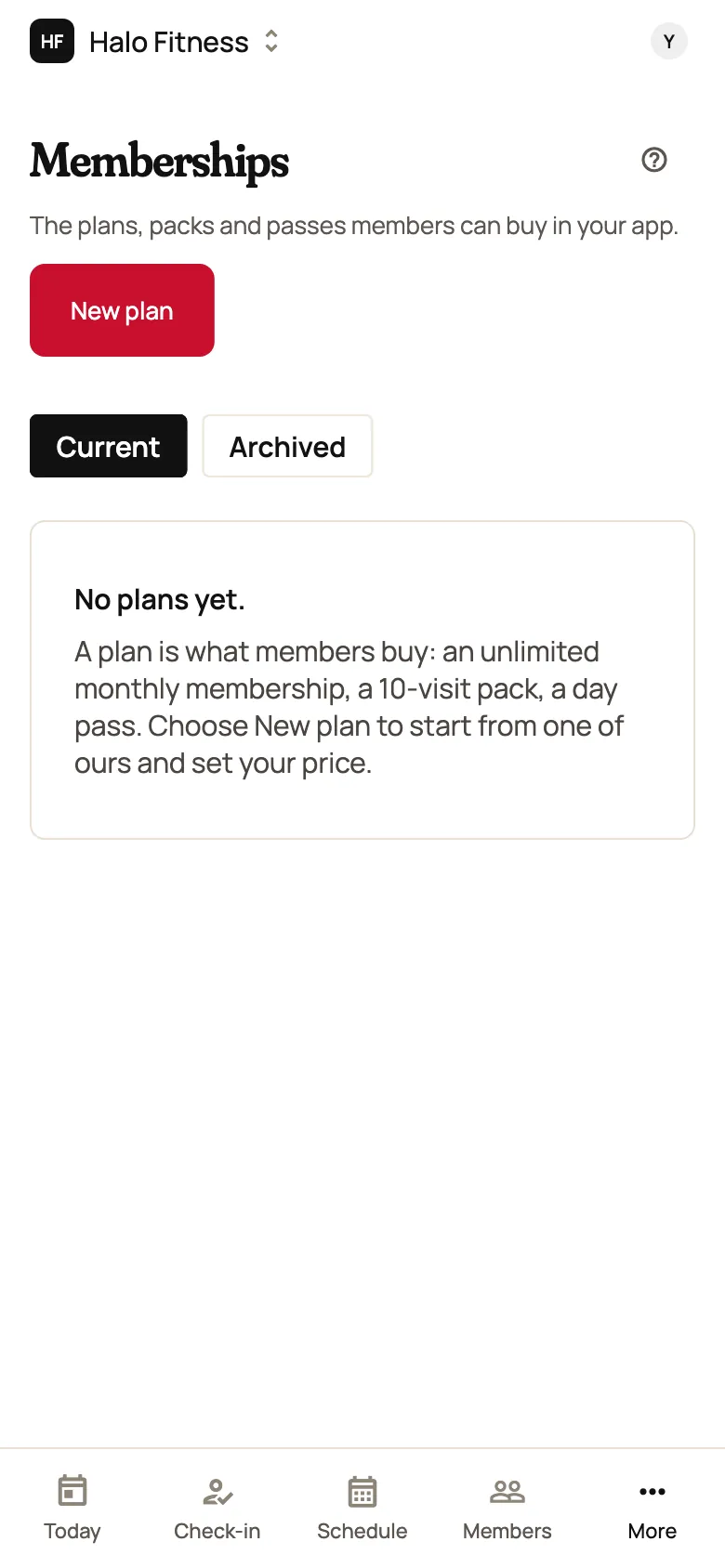
Open Memberships
In the admin, open Memberships and choose New plan at the top. Until you have a plan, the page says No plans yet.
Pick a starting point
Under Start from, choose the closest kind of plan. The kinds that fit your type of studio come first, such as Class credits and Visit pack for a pilates studio, or Unlimited tanning and Tanning minutes for a tanning salon. More kinds shows the rest: Unlimited monthly, Day pass, Cuts per month, Unlimited wash and others. Each one brings sensible rules with it. A visit pack, for example, expires 182 days after purchase and can't be frozen; the Unlimited monthly start can be frozen for 30 to 90 days once a year and allows one guest.
Name it and set the price
Type the name members see. Under How it’s paid, choose Repeats (charged every week, month or year), Paid up front for a set term (one payment covers 1 to 120 months), or Paid once for packs and passes. Enter the price, or 0 for a free plan. The line under the price shows how members will read it, like $129.00 a month.
Set what it includes
For packs and credit plans, enter how many visits, credits, minutes or cuts it includes. Unlimited plans show what they cover instead.
Then set Plan tags: they decide what members can book with the plan. A plan with no tags works when you check someone in at the door, but it can't pay for a booking. Add
classto cover every class, or a tag such asreformerto cover only the classes, appointments and rentals tagged the same in their own form. The Class credits kind starts withclassalready. The plan's row shows its tags.Choose whether to sell it now
Leave Sell it in the app on to put it on sale straight away, or turn it off to set it up quietly. Then choose Create plan.

How members buy it#
When at least one plan is on sale, your app shows a Shop tab, with Memberships and Packs as separate lists when you sell both. Members open Details to see what a plan includes, then choose Join for a membership, or Buy and the price for a pack, and pay by card. The membership then shows on the member's profile in the admin.

At the desk#
Open a member under Members. Their plans are on the Memberships card. Owners, managers and front desk staff can sell, freeze and cancel. Only owners and managers can refund or adjust a balance. Each plan with an allowance shows what's left, such as Visits left: 8.
- Sell a plan: pick a plan that's on sale. A plan with a price makes a secure payment page: copy the link and send it to the member, or open it on a screen they can use. Nothing is charged until they pay there, and the plan starts when they do. Until then it shows as Not paid yet, with the link and Cancel sale…. A free plan starts as soon as you add it.
- Freeze…: for a number of days, inside the limits you set on the plan. The renewal or end date moves out by the same number of days, and any freeze fee on the plan is collected from the card on file or stays owed. You only see this if the plan allows freezes and its payments are up to date.
- Cancel plan…: at the end of what's paid for, or now. A plan with a failed payment ends straight away. Cancelling doesn't refund anything.
- Adjust balance…: add visits or other units back, or take some away, with a reason that's kept with the plan. Pick Add or Take away, type how many and why, then choose Save balance; the new balance shows on the plan and in the member's app. Use it when the 10-second undo at the desk has passed, to give a free visit, or for a visit that wasn't recorded. By default a manager can move up to 100 at a time and an owner up to 10,000; an owner changes them with Manager adjustment limit and Owner adjustment limit in Settings, under Memberships. A balance never goes below zero. Unlimited plans and units that have expired have nothing to adjust.
- A failed payment. The member's plan says the last payment failed and is still unpaid. After the plan's grace days, check-in may refuse them, depending on the plan. Ask them to update their card in your app. If the plan has a minimum term, an owner or manager can waive it.
- Refund and end…: gives money back and ends the plan.
Change a price or allowance#
Each plan's row says how many members have it now, counting plans that are active, on a free trial, frozen or waiting on a failed payment. Check it before you move everyone to new terms or archive a plan.
Choose Edit on a plan. Changing the name, or whether it's on sale, applies straight away. Changing the price, how it's paid, what it includes or its plan tags asks who gets the change:
- New members only: people who already have the plan keep what they bought.
- Everyone, at their next renewal: current members move to the new terms when their plan next renews. Tell them before you do this. Only plans that repeat renew, so packs and up-front terms offer New members only.
Stop selling or archive a plan#
Both are in the More menu (⋯) at the end of the plan's row.
- Stop selling takes a plan off sale for now: it leaves your app, nobody can buy it, and members who have it keep it. Its row says Not on sale. Choose Start selling to put it back.
- Archive stops selling it for good. It moves under Archived, can't be edited or brought back, and members who have it keep it. To sell something like it again, create a new plan.
Still stuck?
Email hello@meetscarlet.com and tell us which guide you were on. A person reads every message.