What your members see in your app
Your members use an app with your name, colors and logo. Here's what they see, what each part does, and which parts you switch on or off from the admin.
On this page 8 sections
Signing in#
Members sign in with their email: the app sends a 6-digit code that works for 10 minutes. There's no password to forget. Where you allow booking without an account, the sign-in screen also offers to book an appointment without one.
The tabs#
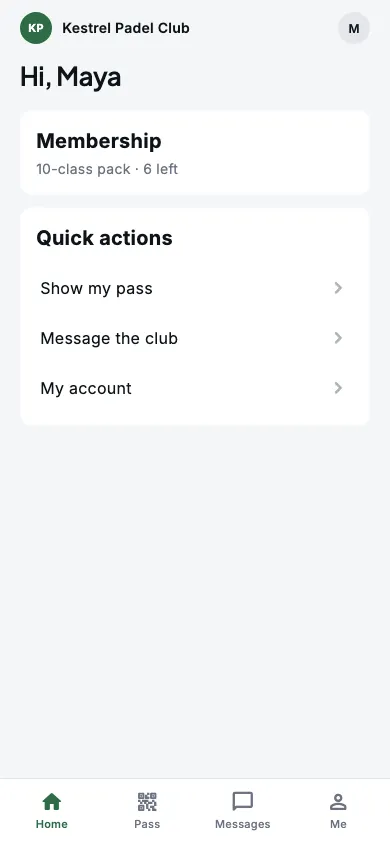
Home and Me are always there. You pick up to three more, five in all, in the admin under Your app, Tabs: Book, Schedule, Matches, Pass, Shop and Messages. Your studio type sets a sensible start, such as Home, Schedule, Pass, Shop and Me for a pilates studio.
Book, Schedule, Shop and Matches appear only once you've set up what they show, so members don't land on an empty screen. Pass and Messages show whenever you switch them on.
- Schedule: once you have a class.
- Book: once there's a court or other resource, an appointment service bookable online, or a walk-in line with someone taking walk-ins.
- Shop: once a membership or pack is on sale.
- Matches: once open matches are on and you have a court.
On a phone the tabs sit at the bottom; on a wide screen they move to the top. If you have Courts on, members see it as Book, where they book courts, until the courts screen arrives. Wash is saved but not shown yet. In your App Store and Google Play app, a tab that depends on your setup can need the next app update before it first appears; your web app follows your setup straight away.
Booking, moving and cancelling#
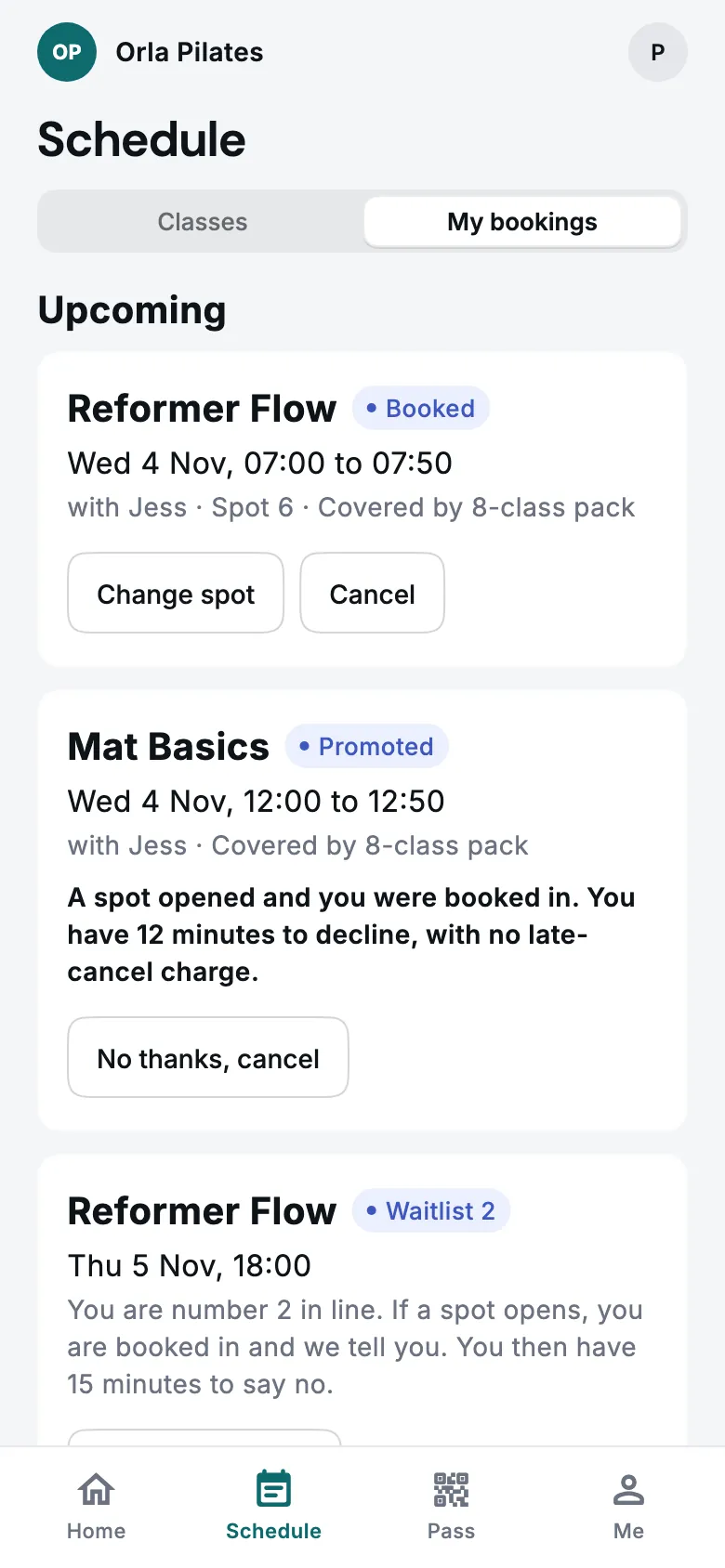
Members book from Book or Schedule, and find everything they've booked under My bookings, split into Upcoming and Past, with a status on each: Booked, Checked in, Cancelled, Waiting for approval and so on.
- Cancel: the app says until when it's free to cancel. After that it counts as a late cancel, following your cancellation settings.
- Move: members can move a court or appointment booking themselves up to three times, before the free-cancel time, or the change-of-time window if you set one for appointments. The price is worked out again for the new time. After that, they're asked to contact you. Classes can't be moved, only cancelled, or given a different spot when the class has a spot map.
- Waitlists: a full class offers Join the waitlist. If a spot opens, the member is booked in, told, and has 15 minutes to say no without a late-cancel charge. For appointments, members say when they could come and get an email if a time opens.
- Book again: under a finished appointment or walk-in, the app suggests the same service again a few weeks later, at times that are free. See Suggest booking again after.
The pass#
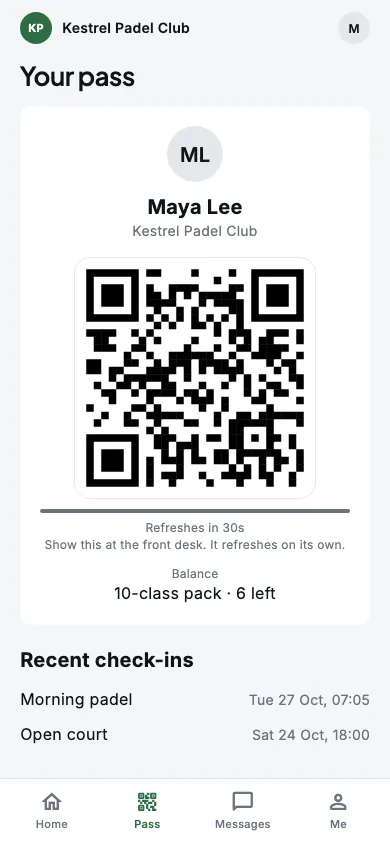
Pass shows the member's name, photo and a QR code that changes every 30 seconds, so a screenshot can't be passed around. Your desk scans it to check them in. Without a connection, the app shows a backup code instead, and your staff may ask for photo ID. Below it are the member's plan balance and recent check-ins.
Your usual, credit and referrals#
- Your usual: after two visits in 180 days to the same court for the same length, or the same service with the same person, Book offers it again with up to three free times in the next two weeks. Classes don't count.
- Gift cards and credit: under Me, members buy gift cards, redeem a code, and see their credit, which pays for a booking at checkout. See gift cards.
- Refer a friend: shown only when you turn on Referral rewards under Gift cards. Members share a code, a new member enters it, and credit follows on the rewards you set. See referrals.
Splitting the cost of a court#
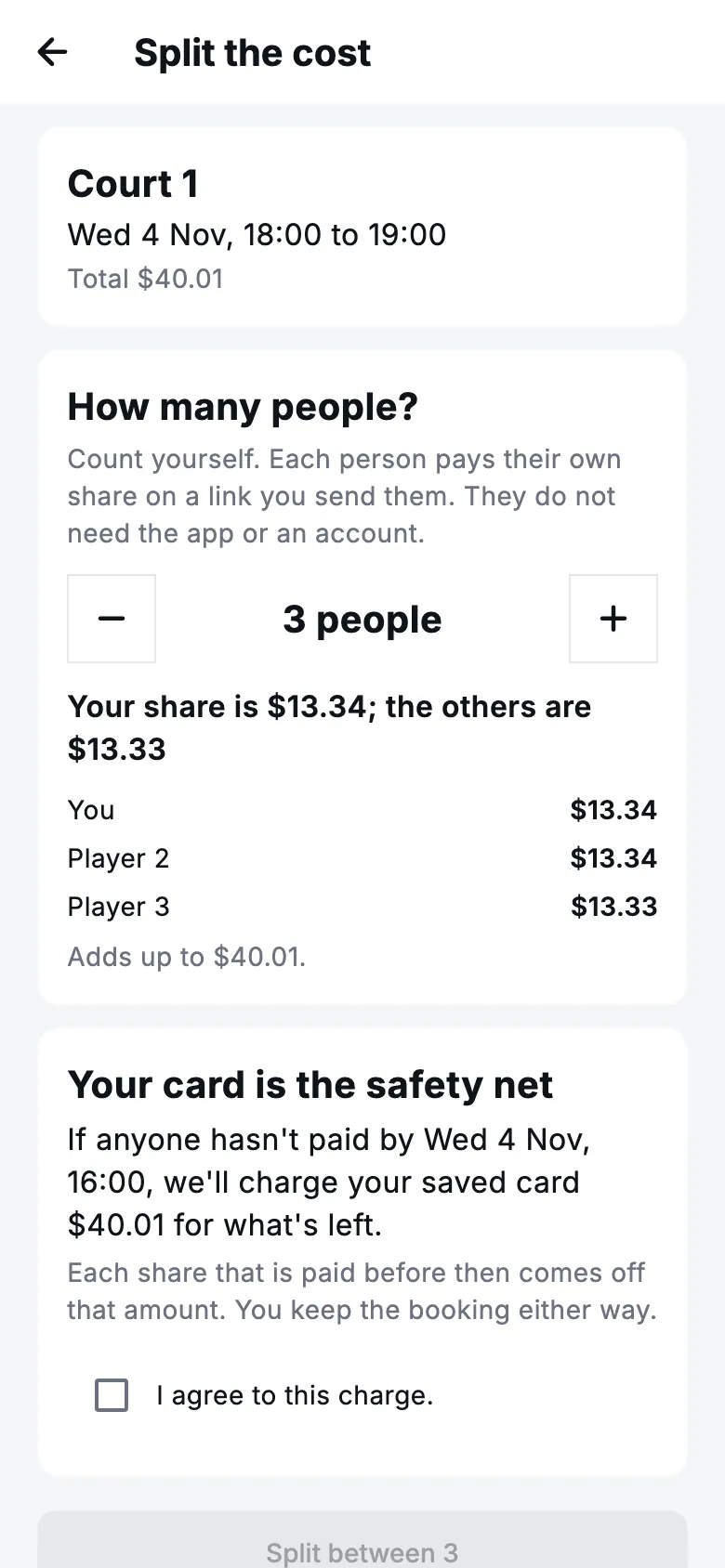
When you turn on Let members split a booking between players in Settings, a member with an unpaid, upcoming court booking can choose Split the cost, between 2 and 12 people. Each player gets a link to pay their share, with no app or account needed. The member who booked agrees that their card covers any share still unpaid shortly before the start, at the time you set. See split payments in Settings.
Their year in review#
After three visits, members can open Your year under Me: their visits, favorite class or service, the day they come most, their longest streak and their first visit, in your colors. From 1 December to 31 January it also appears on Home. Save image turns it into a picture they can share.
Messages, the widget and their account#
- Messages: when you turn the Messages tab on, members write to you and can attach a photo or PDF. You answer from the admin: see messages.
- Home-screen widget: on iPhone and Android, members can add a Next booking widget that shows their next booking in your colors.
- Walk-in line and tips: when you run them, members join the line and leave a tip from the app. See the walk-in line and tips.
- Me: members change their photo, name and phone, choose which notifications they get (messages, reminders, waitlist, account, and offers and news, which is off until they turn it on), pick Light, Dark or Match phone under Appearance when you let members choose (see Light or dark), sign out, or delete their account. Deleting an account cancels any membership that renews: it ends when the current period ends (right away if a payment is overdue), the notice period and minimum term don't apply, and a freeze fee not yet charged is waived, so they aren't charged again. Credits or visits left on those plans are lost. The app won't delete the account if the member is blocked, has household members linked to them, or has a plan Square bills rather than Scarlet; it tells them to ask you. Unlink the household members on their profile, or cancel the Square plan in Square. Payment records stay with you, as the law requires.
Still stuck?
Email hello@meetscarlet.com and tell us which guide you were on. A person reads every message.