Run open matches, player levels and Americanos
An open match turns one member's court booking into a game others can join. Each player pays their own seat in your app, Scarlet handles the deadline and refunds, and your team keeps an eye on it from Schedule.
On this page 5 sections
Turn on open matches#
Open matches are for studios with courts, and they start on for a padel studio. The owner turns them on or off in Settings, under Open matches; managers can change the seat time and the level rule.
- Offer open matches: members who booked a court can open it as a match for 2 or 4 players.
- Time to pay for a seat: how long a player holds a seat while they pay, 15 minutes unless you change it (5 to 60). When it runs out, the seat goes back to the match.
- Only confirmed levels can join: off by default. When it's on, a match with a level range only takes players whose level your team has confirmed. A level they gave themselves isn't enough.
- Let the organizer pay for empty seats: off by default. When it's on, an organizer can agree that their saved card pays for any seat nobody took, so the court stays booked.
Once matches are on, members use the Matches tab in your app (add it under Your app if it isn't one of your tabs), and Matches and Players appear in the view chips on Schedule.
How members open and join a match#
Book a court
The organizer books a court as usual without paying for it yet, then opens that booking as a match from their bookings. A court that's already paid for can't become a match.
Choose the match
They pick 2 or 4 players (the court price is split into equal seats), any level or a level range, who can find it (Everyone, or Invite link only with a code they share), and when joining closes: your studio's shortest time, or 3, 6, 12, 24 or 48 hours before the start, whichever still fit before it.
Pay their own seat
The match is listed for other members once the organizer has paid their seat. Until then, only they can see it.
Others join
Members find it in the Matches tab (Fits my level narrows the list), hold a seat and pay for it. A player can give up a paid seat for a full refund until joining closes or the court's free-cancel time, whichever comes first; after that, they ask the desk.
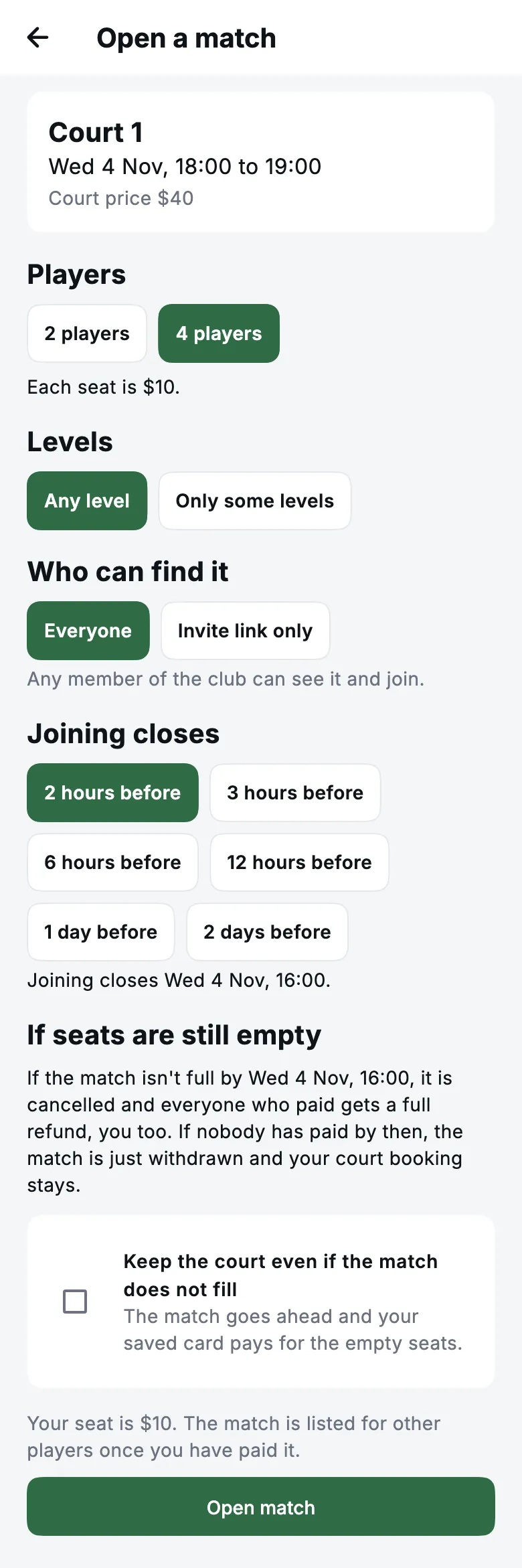
If the match isn't full when joining closes, it's cancelled with the court booking, and everyone who paid, the organizer too, gets a full refund. Where you allow it, the organizer can tick Keep the court even if the match does not fill instead, and their saved card pays for the empty seats.
If the app won't let a member join, it says why. This court is for members: they need a membership that covers the court. Set your level first: they add their level in the app. Your level has to be confirmed: confirm it for them (see Player levels). This match is for levels a range that doesn't include theirs: the organizer picked the range, and the desk can still seat them with Add player.
Follow matches from Schedule#
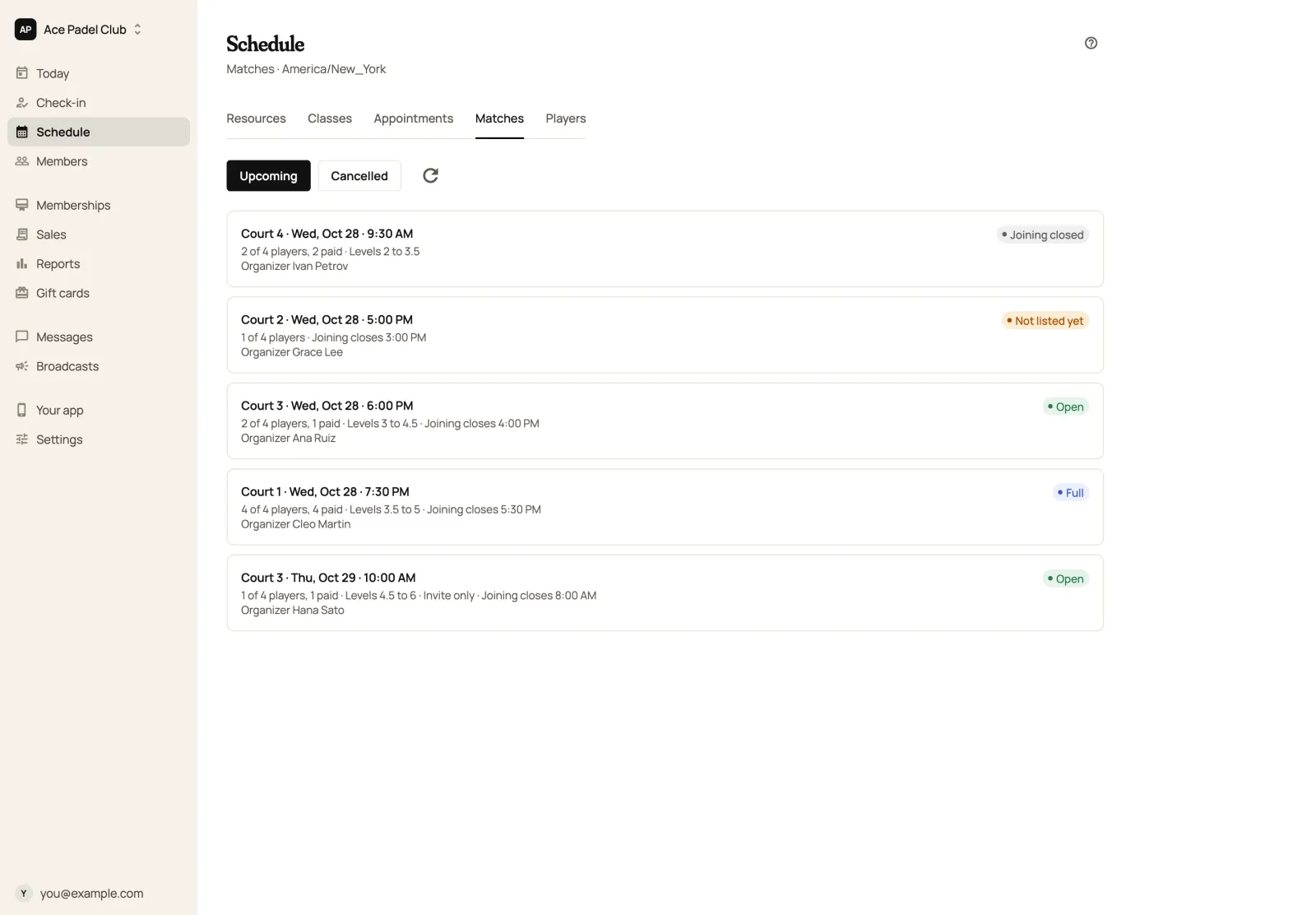
Owners, managers and front desk staff see Matches on Schedule. Upcoming lists each match with its court, time, players and who paid, its level range and when joining closes, and a status: Open, Full, Not listed yet (the organizer hasn't paid), Joining closed, Underway or Finished. Cancelled keeps the ones that were called off.
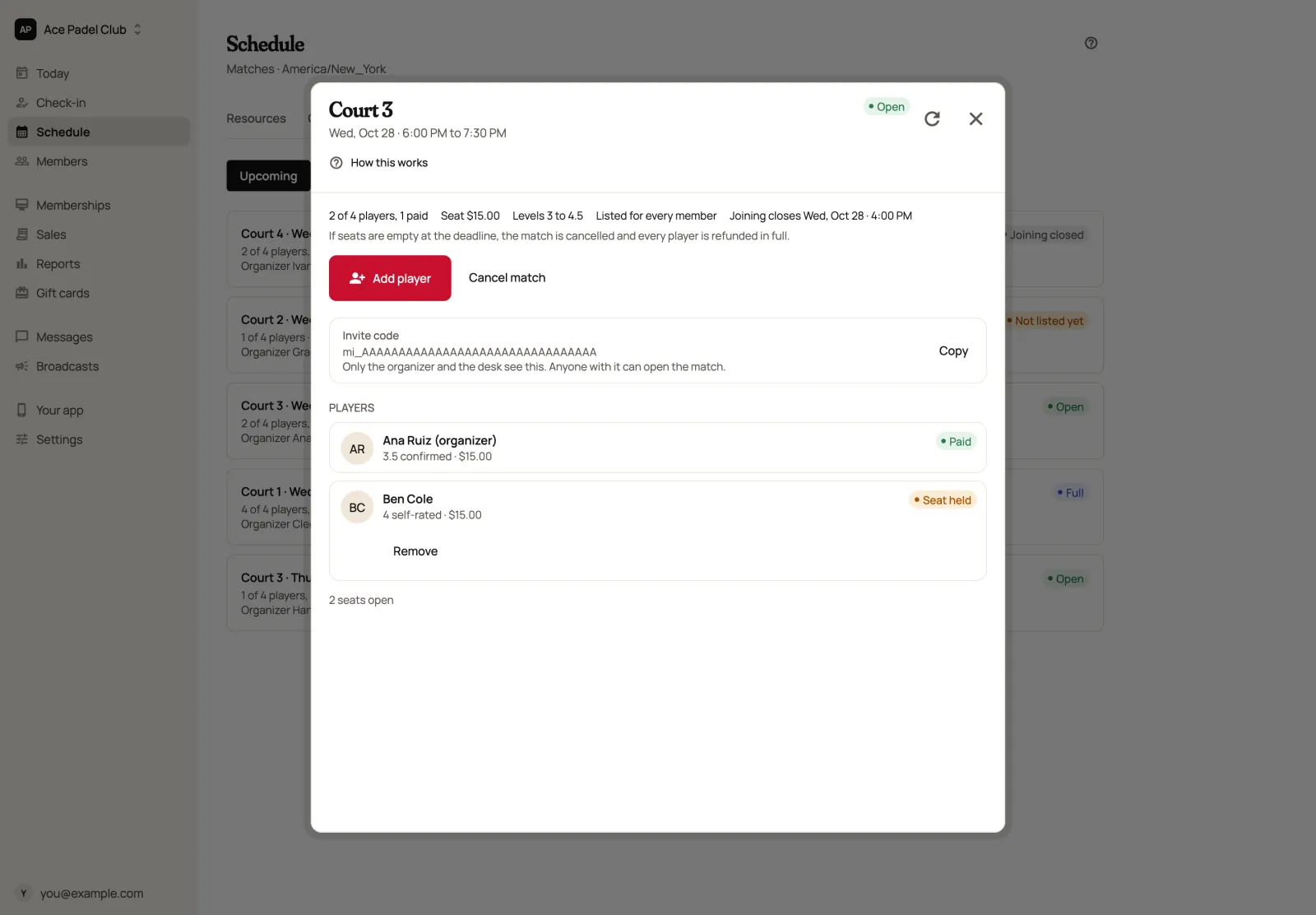
Open a match to see its players and act on it:
- Add player: find a member and they take the next open seat, then pay for it themselves. You can add someone whose level doesn't fit the range.
- Remove a player before the start: their seat opens up again, and a paid seat is refunded in full (Remove and refund). The organizer can't be removed; cancel the match instead.
- Invite code: for an invite-only match. Only the organizer and the desk see it, and anyone with it can open the match.
- Cancel match: the court booking is cancelled with it, and every other player who paid is refunded in full, even close to the start. The organizer's own seat follows the court's late-cancel rule; inside that window you can choose Waive the late cancel. While nobody has paid a seat, you can instead choose Keep the court booking, which ends the match and leaves the court as a normal unpaid booking.
Player levels#
Levels run from 1 to 7 in halves. Members rate themselves in your app; your staff, instructors included, confirm the level, so a match's level range means something. Other players see the number and whether it's confirmed or self-rated, not who set it.
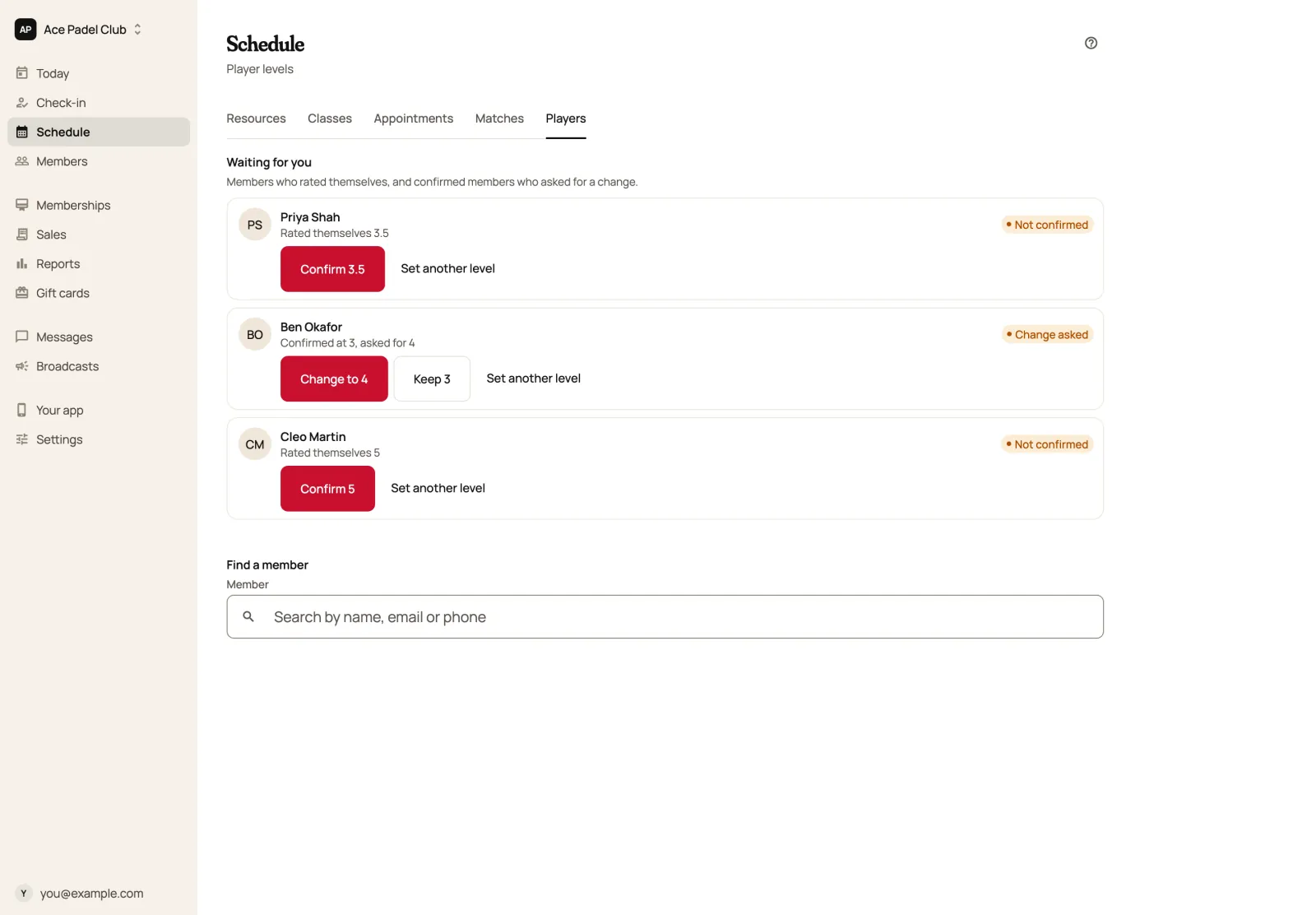
Players on Schedule shows who is waiting for you: members who rated themselves, and confirmed members who asked for a change. Choose Confirm to accept their level, Change to or Keep for a change request, or Set another level. Use Find a member to set anyone's level directly.
Run an Americano#
An Americano is a social tournament where players get a new partner every round and each scores the points their team makes. Members book it like any class. On the class in Schedule, choose Set up Americano, set the courts and, if you like, the number of rounds (leave it blank so everyone partners everyone once). When play begins, choose Start the Americano: the draw uses the members who checked in, or everyone booked when fewer than 4 have, and the players and courts are then fixed.
During the event, Add score records each game, and the leaderboard updates as you go. A score can be corrected until you choose Finish the event; after that the leaderboard is final. Members follow it live in the app. See classes for setting up the class itself.
Still stuck?
Email hello@meetscarlet.com and tell us which guide you were on. A person reads every message.